This page describes how to use rclone to backup to Google Drive using a service account. Access to the Google Drive target folders to/from which data is copied is controlled from Google Drive web UI, similar to when setting up access to normal Google or G Suite user accounts.
Steps:
Create a service account
Set up the target Google Drive folder with the appropriate permissions
Run rclone to access the Google Drive folder
1. Create a service account
The Google service account will provide access to the Google Drive API.
Note that the Google or (G Suite) account used to create the service account does not need to be the same account hosting the google drive folder that needs to be accessed with rclone.
After logging in to a Google account, go to the Google API console and create a project (or use an existing one)
Go to Library and enable the google Drive API for the project
Go to Credentials and create a Service Account:
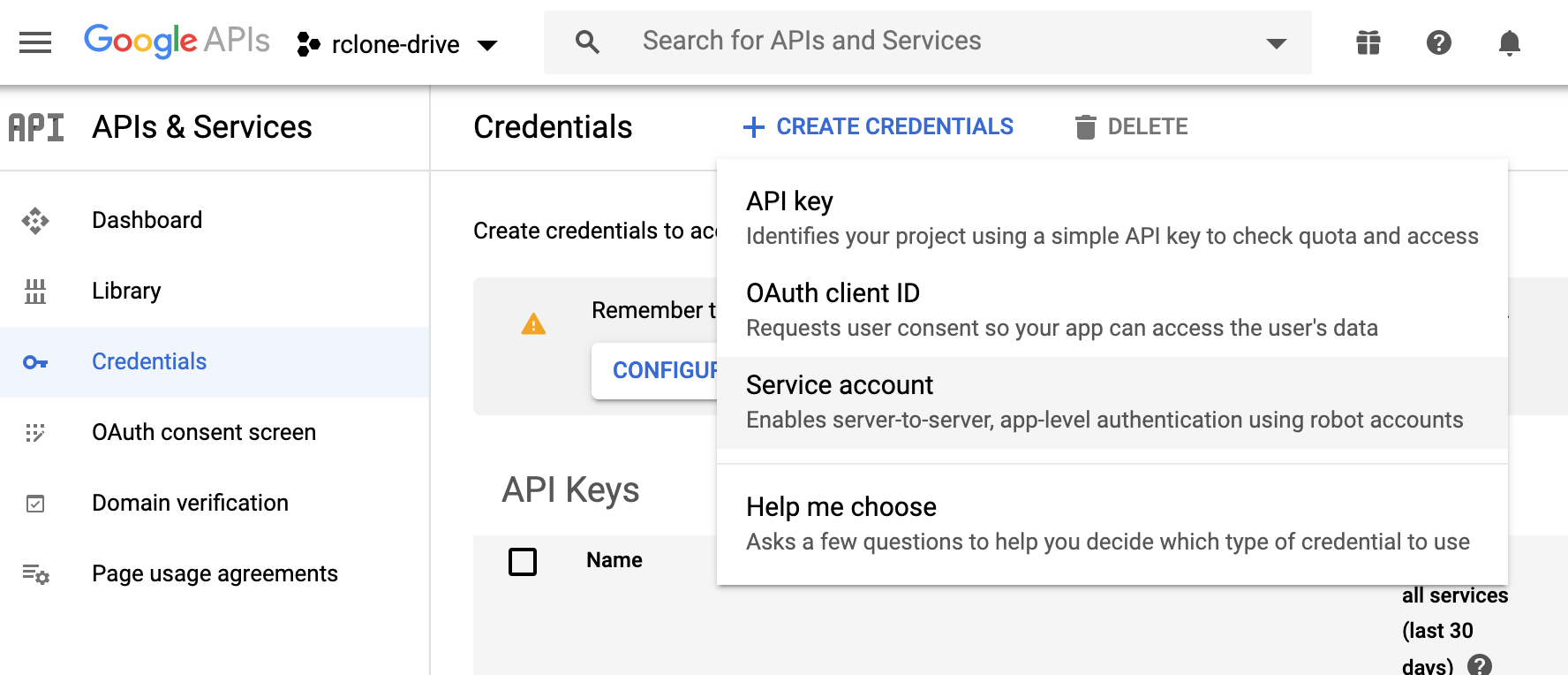
Add a service account name. We do not need to add any permissions or grant users access to this service account.
On the Service Account details page, create a new key, when prompted choose JSON key type. Save the JSON file and store it securely. This JSON file contains a private key that will be used by rclone to authenticate as the service account user.
2. Set up target Google Drive folder
From a Google (or G Suite account) create a new folder or go to an existing folder which you want rclone to have access to (the Google G Suite account does not need to be the same one used for the service account creation). For this folder we need to do two things:
- Take note of the root clone folder id. This is the identifier of the
folder shown in the web browser’s url
(
https://drive.google.com/drive/folders/<ROOT_FOLDER_ID>) - Assign folder permissions to this folder for the service account, as if when setting folder permissions for a standard Google / G Suite user account. Identify the service account using its e-mail (shown in the service account details page or the JSON file from the previous section).
3. Use rclone to copy files to Google Drive
You need to provide rclone the following information for it to be able to access the Google Drive folder files:
type:driveservice_acccount_file: path to the downloaded JSON service account created in section 1root_folder_id: folder identifier obtained in section 2
For example, providing these values in environment variables and using rclone to list the folder files:
> RCLONE_CONFIG_MYDRIVE_SERVICE_ACCOUNT_FILE="<PATH_TO_JSON_FILE>" \
RCLONE_CONFIG_MYDRIVE_ROOT_FOLDER_ID="<ROOT_FOLDER_ID>" \
RCLONE_CONFIG_MYDRIVE_TYPE="drive" \
rclone ls mydrive: